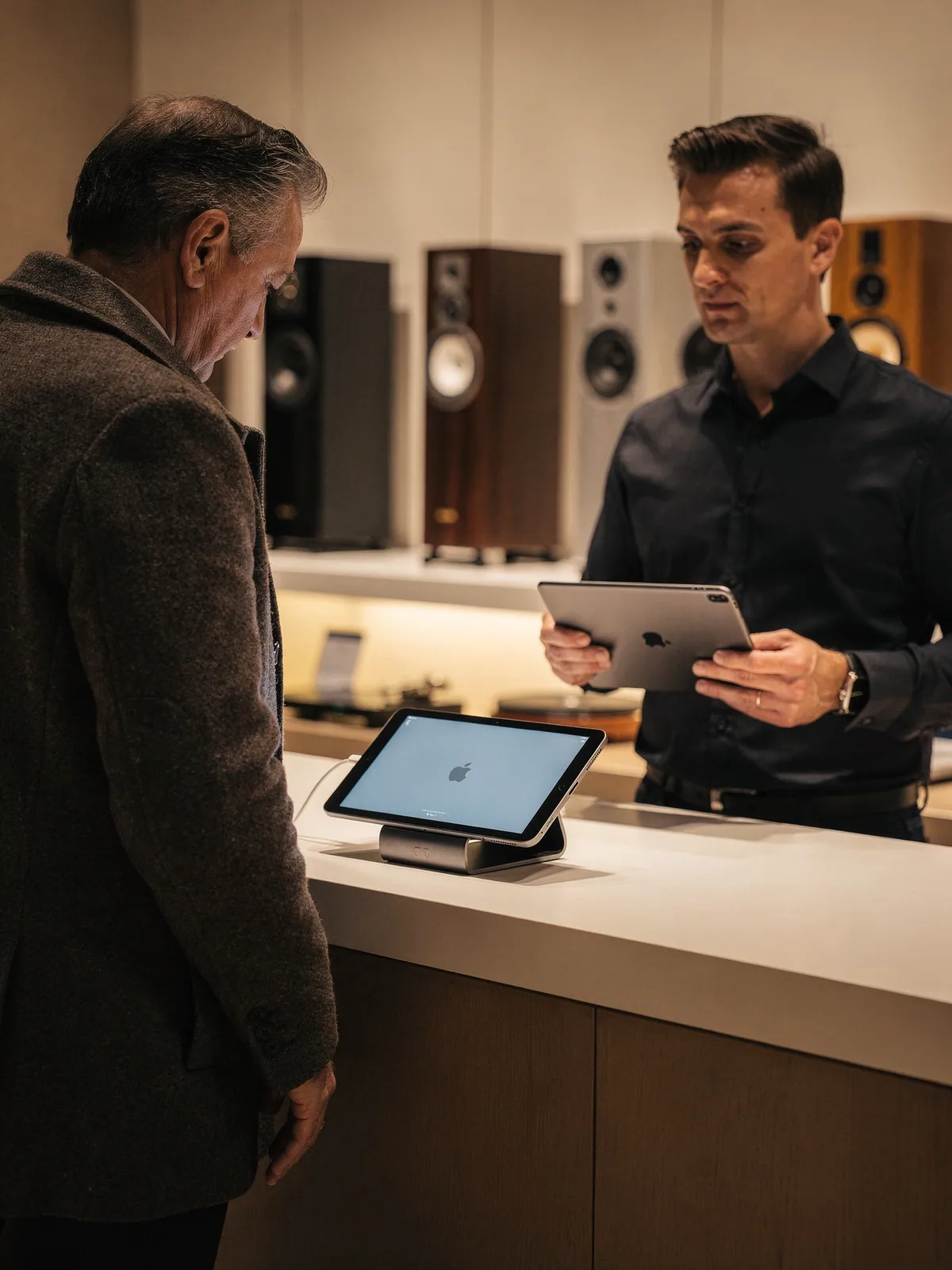
The amplifier
A four-figure amplifier, a pair of stands and a cable. The customer watches all three land on the screen with the bundle discount applied.
Customer display
A hi-fi store sells amplifiers that cost as much as a holiday. A second iPad on the counter faces the customer and shows the basket as it grows, the discount as it is applied and the total before the card goes near a reader. Between sales it shows the pictures you manage in the POS Admin portal.
Why it matters
The customer watches the order build and sees the price, the discount and the total. Fewer questions, fewer disputes.
When the counter is idle the display shows the pictures you choose in the POS Admin portal: the season, the offer, the brand.
It is a second iPad paired from the app. No separate signage software, no media player, no cabling beyond a stand.
The display and the card reader sit together on the counter; the customer sees the total on one and pays on the other.
How it works
Enable the second screen in the app settings and pair it with the till. It sits on a stand facing the customer.
Upload the images the idle screen rotates through in the POS Admin portal, per account, and change them whenever the campaign does.
Lines, quantities, prices and discounts appear on the customer side as the cashier adds them, with the total updating live.
The final total is on the display when the card is presented to the terminal, and the display returns to the pictures when the sale closes.
Ways merchants use it
High-value retail, showrooms and any counter where the customer wants to see the number before they pay.
A four-figure amplifier, a pair of stands and a cable. The customer watches all three land on the screen with the bundle discount applied.
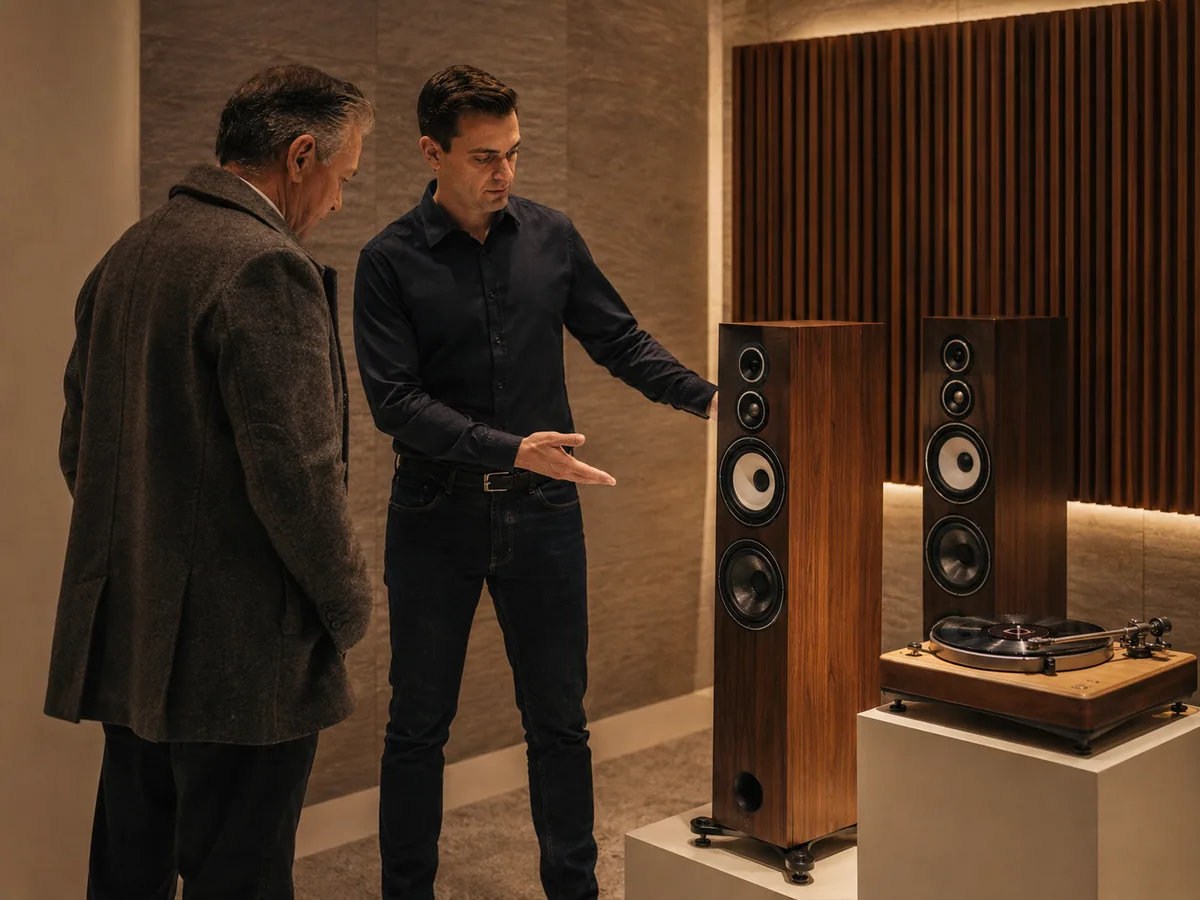
Between the demo and the decision, the counter is idle and the display shows the brand's pictures of the new range.
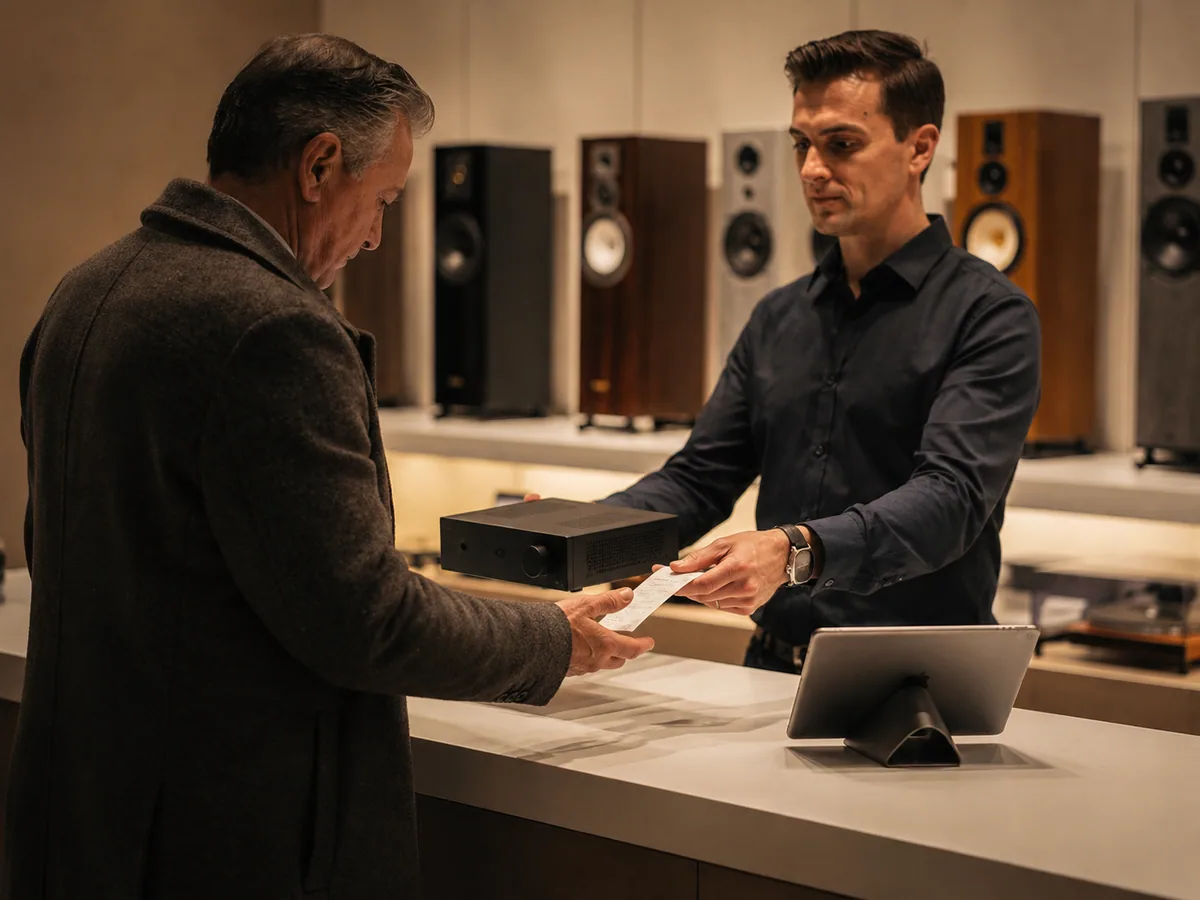
Total confirmed on the display, card on the reader, receipt in the bag. The customer never had to ask what the discount came to.
What you need
Also in Point of Sale
Questions
A second iPad paired from the app. There is no proprietary display to buy.
Branded pictures managed in the POS Admin portal, rotated on the idle screen.
Yes. The running order, discounts and the live total appear on the customer side as the cashier builds the sale.
It is a display for the running order. For self-checkout, the app has a separate kiosk mode that locks the till down for customer use.
Yes. The display and the terminal sit side by side; the total is shown while the customer pays on the reader.
A demo takes half an hour and uses your products, your stores and your permissions, not ours.